Your first Joinery site.
About thirty minutes of filling in forms in a web browser. No command line, nothing to install on your computer, and at the end a mail, calendar and file server that belongs to you.
There are two quick starts. Pick by your domain.
The only question is whether your domain is brand new or already doing something. Follow the wrong one and, at best, several steps will not match what you see — at worst you interrupt mail that is still arriving.
A brand-new domain
You have not bought it yet, or you bought it and it does nothing at all — no website, no email, nothing pointed at it. There is nothing running that a wrong move could break.
You are in the right place. Keep reading.
A domain you already own
It has a website on it, or email you still need, or you are honestly not sure what it is doing. Your steps are different, and a few of them are not optional.
Type the domain in and that guide rewrites these eight steps around what it finds — your registrar, who runs your DNS, whether mail is live on it today.
A computer you rent, and two free plans
Joinery runs on a machine you control, not on ours. You rent that machine by the month, and two free plans cover the jobs a lone server does badly.
A computer you rent
Nobody wants a server humming in a cupboard, so you rent a small one in a data center — a VPS. You never see the hardware; you fill in a form and it exists. Joinery has a one-click installer on Linode, part of Akamai Cloud, who answer support around the clock. Entry level is $5 a month, paid to them.
A service to send mail
Receiving mail on your own server is straightforward. Convincing the rest of the world to accept mail from a brand new server is not, and it is the one job worth giving to a specialist. SMTP2GO sends 1,000 messages a month free, which is more than most households manage.
Somewhere safe for backups
A backup that lives on the same machine as the data is not a backup. Backblaze B2 gives you 10 GB free, and your site writes there on a schedule using a key that can add backups but never delete them — so a broken server cannot erase its own history.
Before you start
Four accounts, opened in this order. Two are free, one costs about a sandwich a year, and one is $5 a month.
Along the way you are handed two kinds of secret. It is worth knowing which is which before the first one appears.
Three keys you copy and paste
You copy each of these from one website and paste it into your own site. Once pasted, your site holds it and your copy can go in the bin.
- The SMTP2GO API key — step 2
- The Linode API token — step 3
- The Backblaze application key — step 5
Five that nobody can re-issue
None of these can be looked up again later — not by you, and not by us. Put each one into a password manager the moment you see it.
- Your site login password — step 4
- Your server root password — step 4
- Your vault recovery codes — these open your encrypted mail and files if you lose your passkey
- Your two-factor backup codes, if you enable 2FA — these get you back in if your second factor stops working
- Your backup recovery key — this opens your backups
Eight steps
Every screenshot opens full size if you click it.
Buy a domain name
A domain is your address on the internet — the part after the @ in your email address. You are used to that being gmail.com or yahoo.com, owned by someone else. Getting it back is the reason Joinery exists. We recommend Namecheap, though any registrar works. Roughly $10–15 a year.
Once you own it, point it at the server you are about to create:
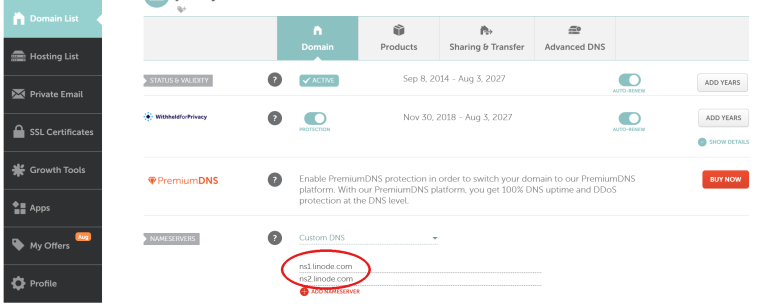
- In the Namecheap dashboard, click Manage beside your domain.
- Find the section marked Nameservers, choose Custom, and set the two entries to
ns1.linode.comandns2.linode.com. - Click the green checkmark.

Set up mail sending
Open a free account at SMTP2GO. The free plan sends 1,000 messages a month, and your mail still lives on your own server — only the last hop out to the world is borrowed.
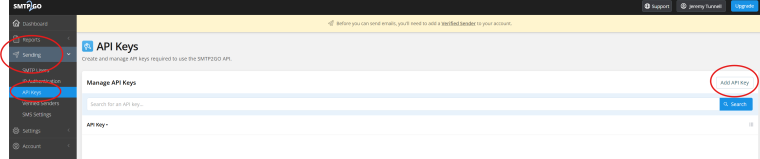
- In the left menu, open Sending and then API Keys.
- Click Add API Key and name it anything —
Joineryis fine. - Check its Permissions before saving. Turn on two groups: Emails and Sender Domains.
- Copy the key somewhere safe. You paste it into the setup wizard in step 7.
Open a Linode account and create a token
Sign up through our referral link and you get $100 of credit to spend over your first 60 days — more than enough to run your site free for two months. You will verify your email address and add a card. Once the Linode dashboard loads, you are ready.
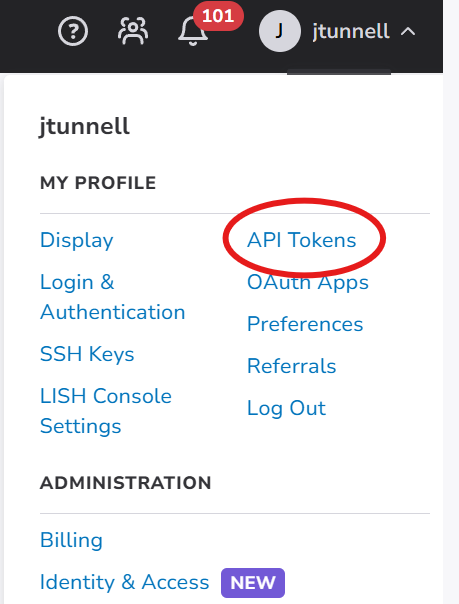
- Open the profile menu at the top right and choose API Tokens.
- Click Create a Personal Access Token and label it
Joinery Token. - Set the expiry to In one month.
- Set Domains and Linodes to Read/Write, and everything else to No Access.
- Click Create Token and save what it shows you. You paste it in step 4.
Create your server
This is the step that builds everything. Open the Joinery installer, click Deploy New Linode, and a form appears. Here is every field on it.
The Joinery fields, at the top
- Admin email address — the address you will log in with. Use the real one you read today, not the new one you are about to create: it is also how you recover the account if you forget your password.
- Admin password — your login password. Choose a strong one and save it; it is the password you keep.
- Site domain — the domain you bought, like
yourname.com. Exactly that: nowww, nohttps://. It has to be a domain you really own, because the installer connects it to this server. - Linode API token — paste the token from step 3.
The server fields, below
- Image — the operating system. Only the version Joinery supports is offered, so leave it alone.
- Region — where in the world the machine physically sits. Pick a city near you; any choice works.
- Linode Plan — the size. Click the Shared CPU tab and choose Nanode 1 GB at $5 a month. It is plenty to start with, and you can grow later without reinstalling.
- Linode Label — a nickname in your Linode dashboard.
joineryis fine. - Root Password — not your website login. This is the master password for the rented machine, which Linode requires you to set. Make it at least 12 characters, save it, and you will probably never need it again.
Click Create Linode. The machine boots and installs Joinery entirely on its own — web server, database, application, certificates, all of it. Give it 5 to 10 minutes, and use the wait to do step 5.
Make a backup bucket
Open Backblaze B2 and sign in to the dashboard. The first 10 GB is free and anything beyond it is cheap.
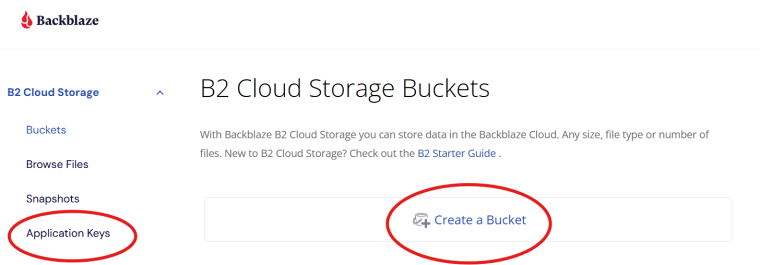
- Click Create a Bucket, name it
joinerybackups, and leave every other option at its default. - Back on the dashboard, click Application Keys in the left menu.
- Click Add a New Application Key and name it
backupkey. - Choose the bucket you just made from the dropdown, and set access to Read and Write.
- Click Create New Key and save what it shows you, along with the bucket name.
Log in
Ten minutes after you clicked Create, open a browser and go to your own site:
https://yourname.com/admin
Log in with the admin email and password you typed on the form in step 4 — not the root password.
Walk through the setup wizard
Your site opens its setup wizard the first time you log in. Each screen explains itself, so go through them in order. Do not skip the email screen: a password reset email is the way back into your account, and a brand new site cannot send one until mail is configured.
Have ready to paste: the SMTP2GO key from step 2, and the Backblaze bucket name and key from step 5. The Linode token is already in place — the wizard uses it once to add your DNS records, then deletes it.
Open your new mailbox
Click your avatar at the top right and choose Dashboard, or go straight to yourname.com/profile. Then click Email in the submenu.
That is your mail, on your domain, on your server. You are done.
Four things, already running
Nothing else to install. Every one of these arrived with the server and is on from the first login.
A full mailbox on your own domain. The address you picked in the wizard sends and receives here, and you can add more from the mail admin.
Drive
File storage on your own machine, with sync clients and a private tier whose contents the server cannot read.
Calendar
Events, invitations, recurring entries, reminder emails, and imports from the calendars you keep elsewhere.
AI assistant
Installed, and waiting on one thing: a key from an AI provider you choose — a local model, or a no-logging service. The wizard asks, or add it later under Settings.
If something goes wrong
The site never appears, even after 15 minutes
Almost always a typo in the domain field. The cheapest fix is also the cleanest: in the Linode dashboard, delete the server (Settings → Delete) and repeat step 4 with the field corrected. Nothing is lost, because nothing is in it yet.
The site loads over http:// but the padlock is missing
Your domain name has not finished spreading across the internet yet. Nothing is broken and there is nothing to do — the certificate arrives on its own once the domain resolves everywhere, usually within the hour.
I cannot log in
Check three things. You are using the admin email and password from the form in step 4, not the root password. You are at /admin. And the address has no typo. The root password is for the rented machine itself and will never log you into your website.
Can I do this on a server I already have?
Yes. This walkthrough is the one-click path on Linode because it is the shortest. If you have your own machine, or want a manual install, a multi-site setup, or the private mail relay, that is all in the full installation reference.
What does this end up costing?
$5 a month to Linode for the server, and $10–15 a year to your registrar for the domain. SMTP2GO and Backblaze are free at these volumes. Joinery itself is free to self-host for personal, household, educational and nonprofit use — not a trial, not seat-capped. You pay us nothing here. Business use needs a licence; see pricing.